Setup guide
Connecting your Fanvil GA10 adapter
Your adapter is already configured for your line. Just plug in three cables and your phone is ready within minutes.
Before you start
Make sure you have the following items on hand.
- The Fanvil GA10 adapter
- The included power supply
- The included black network cable
- Your telephone (corded or cordless) with its phone cord
- Your Internet router with a free LAN port
- A nearby power outlet
The 4 connection steps
No configuration is required: simply follow the order below.
-
1
The network cable
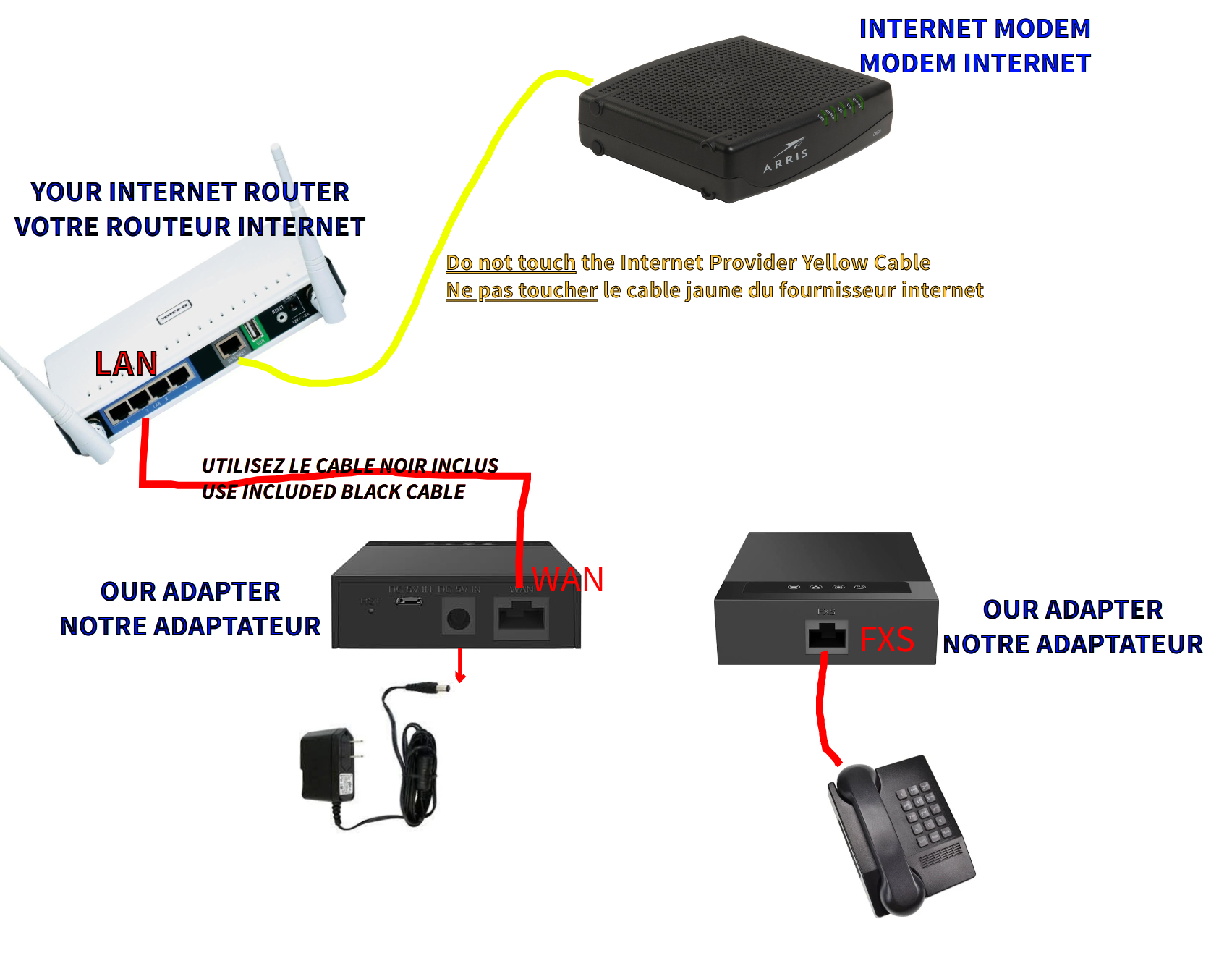
Plug one end of the included black cable into a LAN port on your Internet router (LAN ports are often yellow and numbered 1 to 4). Plug the other end into the WAN port on the back of the adapter.
-
2
The telephone
Plug your telephone's phone cord into the FXS (phone) port on the front of the adapter. A cordless phone works too: plug in its base.
-
3
The power supply
Plug the power supply into the round DC jack on the back of the adapter, then into a wall outlet. The lights on the front turn on.
-
4
Wait a few minutes
Let the adapter start up and connect for 2 to 3 minutes. Then lift the handset: you should hear a dial tone. Your line is ready.
Important
- • Do not touch your Internet provider's yellow cable, the one that connects the modem to the router.
- • Never plug the adapter into your router's WAN / Internet port: always use a LAN port.
- • Use the included black cable and the power supply that came with the adapter.
Connection diagrams for your setup
Find the diagram that matches your Internet provider. In every case, the adapter plugs into a LAN port on the router.
Diagram 1
Bell Fibe — Bell router (when not in bridge mode)
You are a Bell Fibe customer using the router supplied by Bell: plug the black cable into one of its yellow LAN ports, then into the adapter's WAN port. If your Bell router is in bridge mode and you use your own router, follow diagram 2 instead.
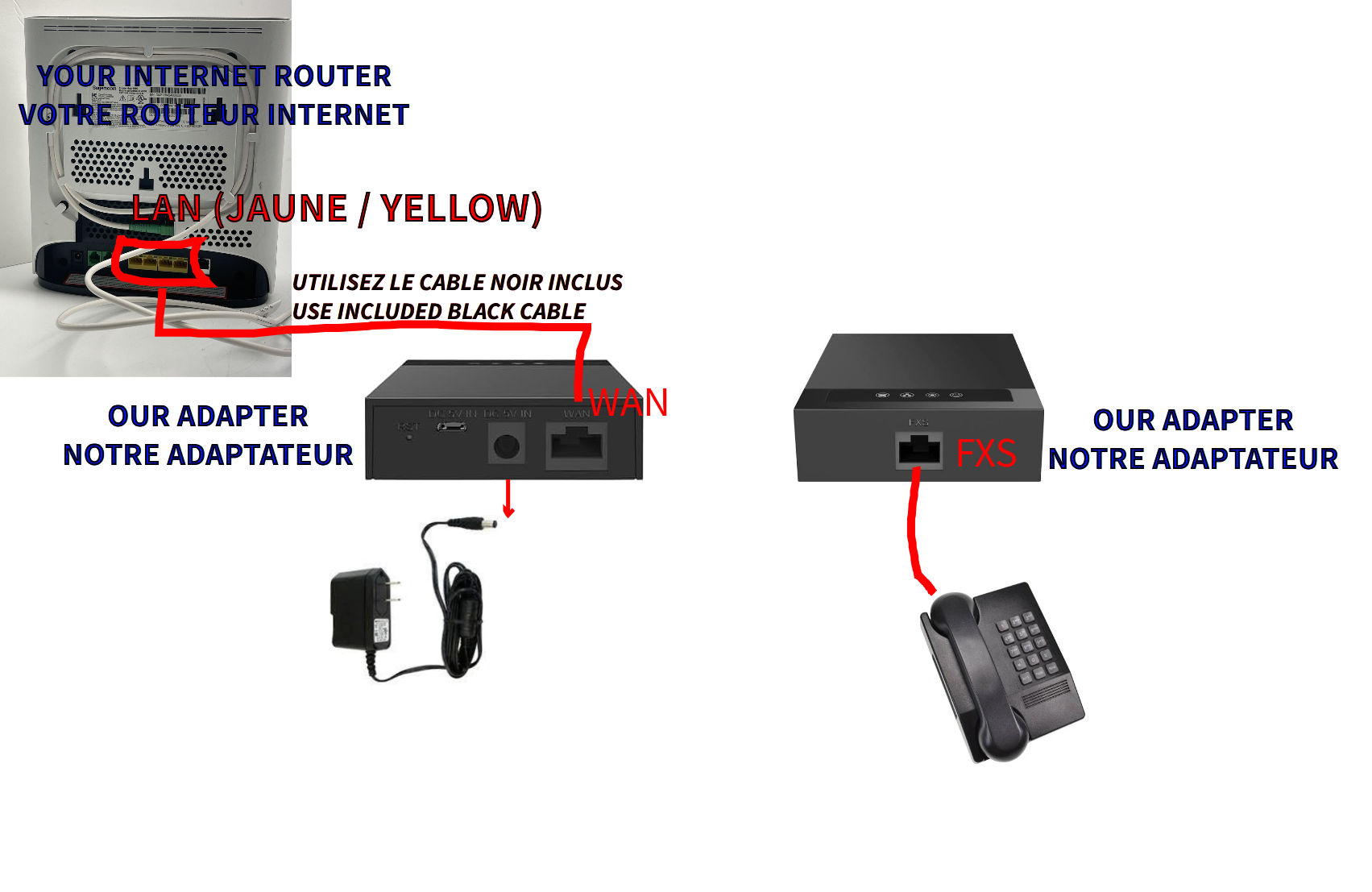
Diagram 2
Generic router — any other provider or your own Wi‑Fi router
You use your own Wi‑Fi router, or a router from a provider not listed here. The LAN ports are usually grouped together (often 4 ports of the same colour); the WAN / Internet port, in a different colour, is reserved for the modem. Plug the black cable into a LAN port.
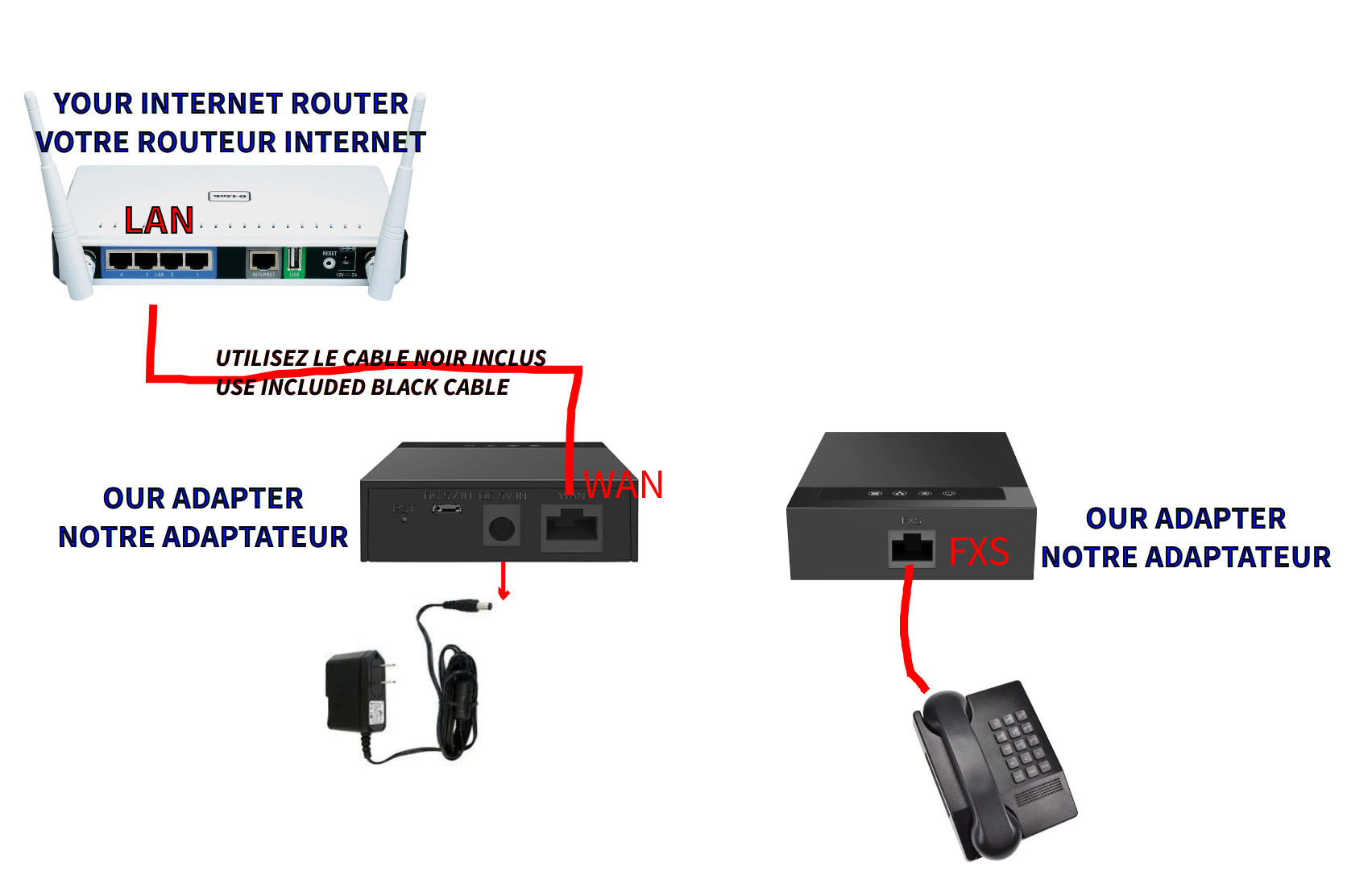
Diagram 3
Oxio, Vidéotron (non-Helix) and Cogeco — separate modem and router
With Oxio, Vidéotron (non-Helix installation) and Cogeco (separate modem and router version), the modem and router are two distinct devices. The yellow cable connecting them belongs to your Internet provider: do not unplug it. The adapter only connects to a LAN port on the router.
No dial tone? Quick checks
These checks resolve the vast majority of connection problems.
The network cable
Make sure it is in a LAN port on the router (not the WAN / Internet port) and in the adapter's WAN port. The adapter's network light should be on.
The telephone and power
The phone cord must be in the FXS port. Check that the power supply is firmly plugged in at both ends and that the lights are on.
Restart
Unplug the router and the adapter for 30 seconds. Plug the router back in first, wait until it is online, then plug the adapter back in and wait 2 to 3 minutes.
Your Internet connection
Make sure the Internet works on another device in your home. If needed, test your connection.
Still having trouble? See our technical support page for common issues and useful codes (voicemail, call forwarding), or contact our team.
Need help connecting your adapter?
Our technical support team can check your adapter's status remotely and guide you step by step.